See every packet on your LAN from Windows
Run this only on your own network, or on a network where you have written permission. ARP spoofing interrupts the traffic of another device. On a network that is not yours, it is a crime. This is a guide for your own lab.
Cameras, plugs, and doorbells all talk to the internet. A switch normally keeps that traffic away from your computer, so you cannot inspect it directly.
A privacy policy tells you what a vendor says. A packet capture tells you what the device actually sends. This is how I captured traffic from one of my own cameras on Windows.
Why you see nothing
A network switch learns which device sits on each port, then sends each packet only to the required port. Your card receives your traffic, and nothing else.
That is good for speed, and it is good for your neighbour. It is bad for inspection. To watch another device, you must first make it send its traffic to you.
ARP trusts the first answer
A device must find the MAC address of the next hop. The next hop is usually the router. So the device shouts into the network: “Who has 192.168.1.1?”
Any device can answer. The response enters a small cache, and ARP does not authenticate its source. There is no signature, password, or additional check.
A false answer moves the traffic. One lie to the victim, one lie to the router, and the packets pass through the liar. This is ARP spoofing, and the seat in the middle is the man in the middle.
What you can read
Once traffic passes through the middle, you can read:
- the servers the device calls, by IP and by name,
- the size and the rhythm of every flow,
- the ports and the protocols.
TLS keeps the content hidden. You read the envelope, not the letter. For many devices, the envelope is the whole story. The size, the timing and the destination tell you what the device is doing.
The camera I did not trust
That is why I built this tool. I have a Tapo camera at home. The vendor promises privacy, but I wanted evidence rather than a promise.
So I put the camera in the middle of my own capture and I waited. When the camera was idle, it sent one small keepalive every 55 seconds. No image. No sound. When I opened the app, the traffic exploded to megabytes.
The camera did not show the behaviour I was looking for. I only learned that by capturing its traffic.
The three tools
On Windows, you need three tools:
- Npcap — the missing limb. It adds the packet driver, and it gives you
libpcap. - Wireshark — it brings
tsharkanddumpcap, the tools that read a capture. - Python and scapy — the hands. scapy sends the lies and moves the packets.
You need administrator rights. Use a separate lab network and devices you own or are authorized to test.
Install it
Wireshark, from a terminal:
winget install --id WiresharkFoundation.Wireshark --silentThe Wireshark package is an MSI, and the MSI does not include Npcap. Go to the next step.
Npcap, from the official site npcap.com. The silent flag (/S) failed for me, so run the normal installer. In the wizard, mark “Install Npcap in WinPcap API-compatible Mode”. Without that mark, Python and scapy cannot find the driver.
scapy:
python -m pip install scapyCheck that scapy sees the driver:
python -c "from scapy.all import conf; conf.use_pcap=True; from scapy.arch.windows import get_windows_if_list; print([i['name'] for i in get_windows_if_list()])"Why not the Windows router
The obvious approach is to enable IP forwarding in Windows and let the operating system relay the packets. In my single-interface test setup, that did not relay the traffic as needed. The companion script instead forwards Ethernet frames itself. Behavior can vary with Windows configuration, adapters and routing, so treat this as a report of that setup, not a general rule about Windows forwarding.
The script therefore relays the frames itself, at the Ethernet layer below IP. It swaps the destination MAC and sends the frame out again. The IP layer never moves, so the checksums stay valid and the connections stay alive.
The script
The full script is in the companion repository:
https://github.com/jacano/arp-mitm-windows
The diagram below shows the packet path. The victim and router each hold a false ARP entry that points to the analyzer. The analyzer relays Ethernet frames in both directions and captures a copy. It changes the destination MAC address for the next hop; the original IP endpoints remain the victim and router.
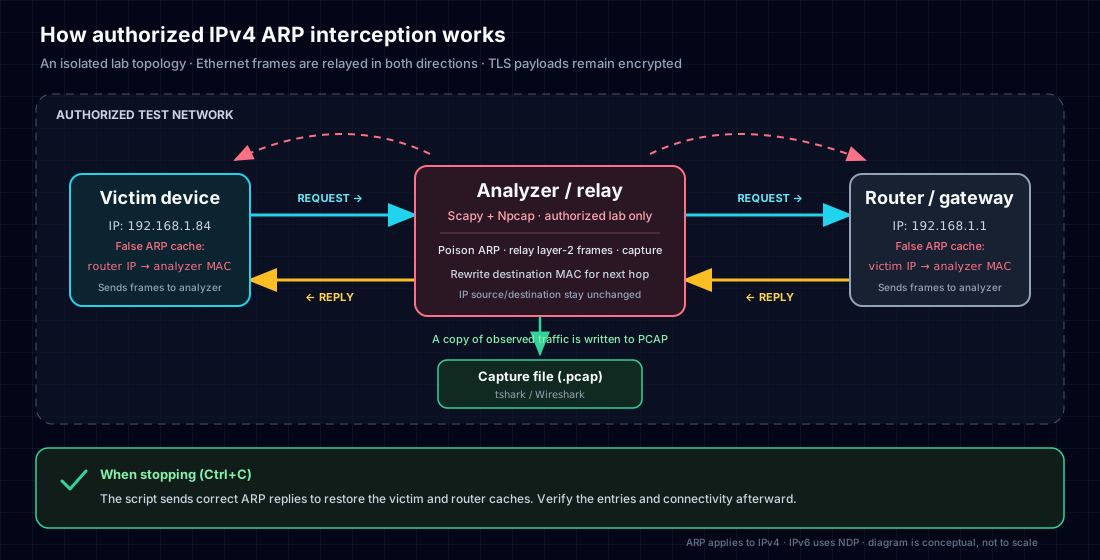
Important: this path interrupts traffic while the tool is running. Use a separate lab network and devices you own or are authorized to test. Stop the script cleanly and verify that the victim and router have their correct ARP entries again.
It performs three tasks:
- Poison: every 1.5 seconds it tells the victim that the router is at its MAC, and tells the router that the victim is at its MAC. It also answers the ARP requests of each side.
- Relay: for each frame that arrives for it, it rewrites the destination MAC and sends the frame on.
- Capture: it writes the victim traffic to a
.pcapfile, and it prints DNS names and TLS server names as they appear.
Run it
python mitm.py --target 192.168.1.84 --gateway 192.168.1.1 --iface Ethernet --out victim.pcapFind the target with a ping sweep, its MAC address with arp -a, and the interface name with Get-NetAdapter.
To stop, press Ctrl+C. The script then sends the correct ARP answers, and both sides return to normal.
Did it work?
Open the capture:
tshark -r victim.pcap -n -q -z conv,tcpA good capture shows one clean stream. In my test, sequence numbers advanced without gaps and there were no retransmissions. The device did not detect the analyzer.
Takeaways
- A switch hides the traffic. You must move the packet, not sniff harder.
- ARP trusts any answer. One false answer can redirect the traffic.
- Npcap is the missing part on Windows. The Wireshark MSI does not install it.
- The Windows IP router fails on one interface. Relay at layer 2 instead.
- Rewrite only the MAC. Do not touch the IP, and the checksums stay valid.
- Always restore the ARP cache at the end.
Limits
- TLS hides the content. You see the metadata only.
- The tool is fail-open. If your machine stops, the poison stops, and the device returns to normal when the ARP entry expires.
- Some networks block ARP spoofing. Managed switches can use DHCP snooping and dynamic ARP inspection.
- IPv6 uses NDP, not ARP. This script is for IPv4.
Learn more
- The script and the guide: github.com/jacano/arp-mitm-windows
- A ready tool with a user interface: bettercap
- The capture driver: npcap.com
Use it on your own network only. Verify first, then trust.